HOW TO CARD APPLE PAY WITH CC & NFC CASHOUT CARDING METHOD 2026
You may effortlessly add a card to your Apple wallet and use it to pay with Apple Pay and NFC in stores. You can use the card as long as the Apple wallet accepts it.
The Apple Pay Carding Method
To use NFC, you need to pick a business that isn’t too distant from the billing location on the card. A store in the same state will do.
Needs:
iPhone Phone: This is the Google Play way; we need an Android phone.
NonVbv CC with Fullz: A card that doesn’t need 2fa to link to the Play Store
VPN: Make sure your billing address matches the location on the VPN.
NFC: Make sure your phone can handle NFC if you want to use it at a store.
Always use a card with all the fullz info on it so you can easily card it. This will save you time when you need to gather background info. We only need the credit card number, address, and full names for this instruction, as long as the card is not vbv.
Website: apple.com
How to do it:
Sign up and buy Fullz from buyccfullz.com
It’s easy to buy a card from our shop. Just follow the instructions below. Look at the sample photo below to help you pick the right card. Make sure all the fields are checked. The nonvbv column in particular
Visit our shop to make a new account. Enter your email address and choose a password.
To stay away from fraudulent sites, click here: buyccfullz.com A lot of sites try to copy and host this one, so make sure you click the link above or type the address directly into the address bar. Don’t look for results. You can make an account for free, but you have to add money to it every day to keep it active.
Choose Gold Cards in the US country of your choice. They work the finest. In my case, I will collaborate with the US. Choose a card that has all the information and is not vbv, like the one below.
The card must check all the boxes so that it has all the information needed to prove ownership.
Choose the complete fullz card, please. I picked a card with all the checkboxes selected, like the one above. This means it’s a nonvbv with all the information.
All of the cards are active, and you may check your balance, so do it. Will assist you place orders and make sure your card can handle the amount of the order.
We will need a VPN to card with a phone because it’s hard to set up proxies on a phone. The Express VPN is a decent choice for most carders. You may get it from the Play Store and sign up. If you require a licence, it’s easy to ask for admin from our hacked accounts. Just make sure you can adjust the time and place to match the billing or your fullz.
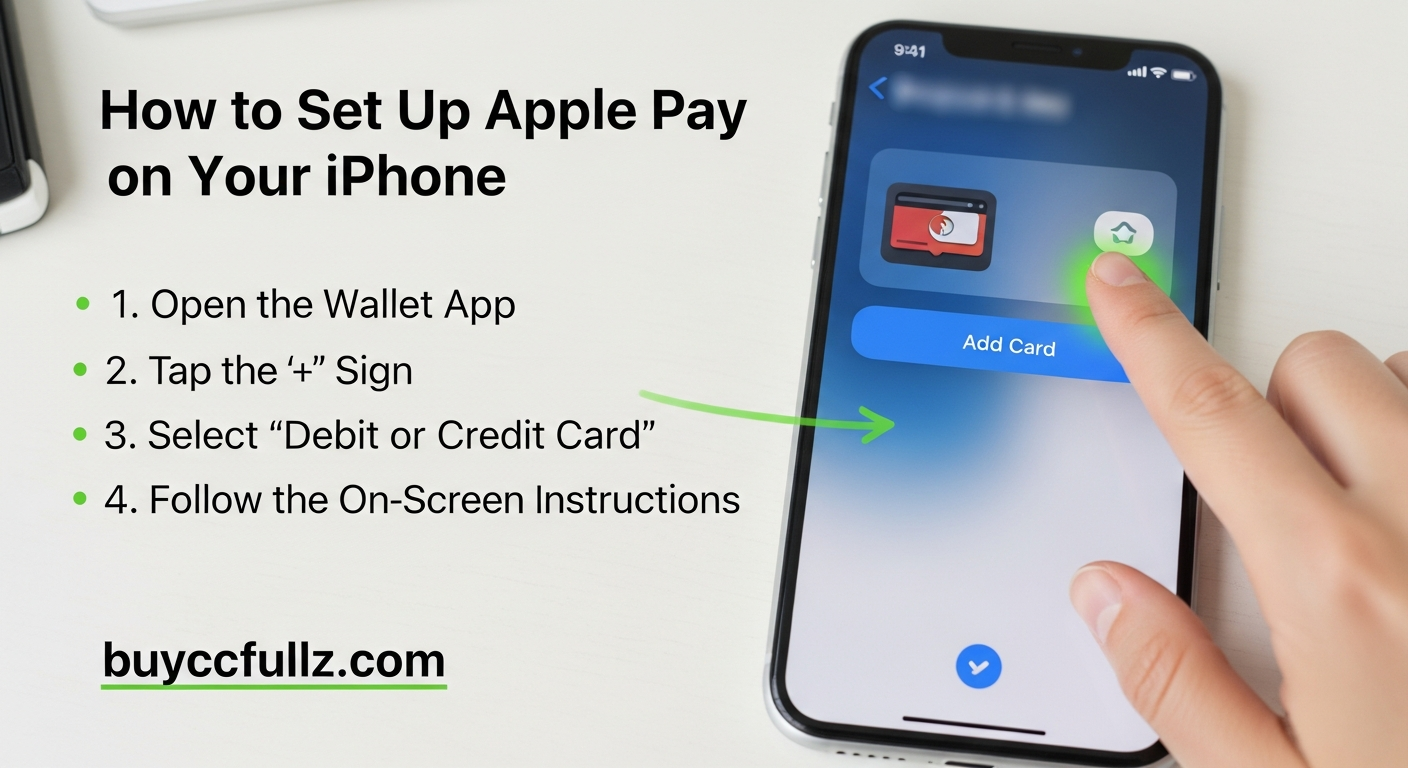
How to Set Up Apple Pay on Your iPhone
Go to the “Settings” app on your device and choose “Wallet & Apple Pay.”
Then click “Add Card.”
Tap “Continue” on the introduction page
Choose the kind of payment card you want to add.
Here is where you will add your fullz and link to your Apple wallet.
You may add a credit card by holding the phone over the card and letting the iPhone read the number off the front. Since we’re using a cc card and not a plastic one, we’ll skip this step.
To switch between inputting your name and card number or expiration date and security code, tap “Next” and “Back.”
You should check out the Terms and Conditions page. Look at the information and then tap “Agree.”
Check
Your iPhone will try to confirm the card with the company that issued it and then add it to the Wallet. This happens automatically for NonVbv cards, but for secure cards, you will need to submit a verification number or contact your card company. In our instance, this would mean that our carding failed.
The card on the right is safe, but we can’t link it. So pick a nonvbv .from our shop
We can now buy things because we have a connected card. We can use the card on websites that accept Apple Pay or in stores that accept NFC.
How to pay
Open the Settings app and tap on “Wallet & Apple Pay.”
Choose the card you want to use by tapping “Default Card.”
Turn on Apple Pay when you’re ready to pay. If your iPhone doesn’t have a home button, you can achieve this by swiftly double-clicking the side button. The Wallet screen will show up and scan your face.
If your iPhone has a home button, hold your finger on it until the Wallet screen comes up.
If you have an iPhone with a home button, hold your finger on the home button until the Wallet screen shows up.
Put the iPhone right above the point-of-sale terminal. You may need to find the Apple Pay or wireless sign to determine where to put the phone. You can always ask the cashier where to put it if you’re not sure.